Installing
engender runs in a browser. Open it and you can start writing straight away, with nothing to download.
To keep it on your phone or computer, use your browser's option to install it or add it to your home screen. It then opens in its own window, and once it is installed it opens without a network connection.
There is also an Android app. It is the same journal, installed as an app, and the home page lists where you will be able to get it.
Your journal lives where you start it. A journal in your phone's browser and one in the Android app are two separate journals, and so are two browsers. To move yours from one to the other, export a backup and choose "I already have a backup" when you open the other one for the first time.
No account
There is no sign-up and no engender account. Nothing you write goes to a server: it is stored on your device, encrypted, and it leaves only when you export it yourself.
So nobody can hand your journal back if the device is lost or reset. A backup you exported is the only copy that survives, so export one every so often and keep it somewhere safe.
Setup
The first time you open engender, it asks a few questions before you reach your journal. There are nine steps, and you can change every answer later.
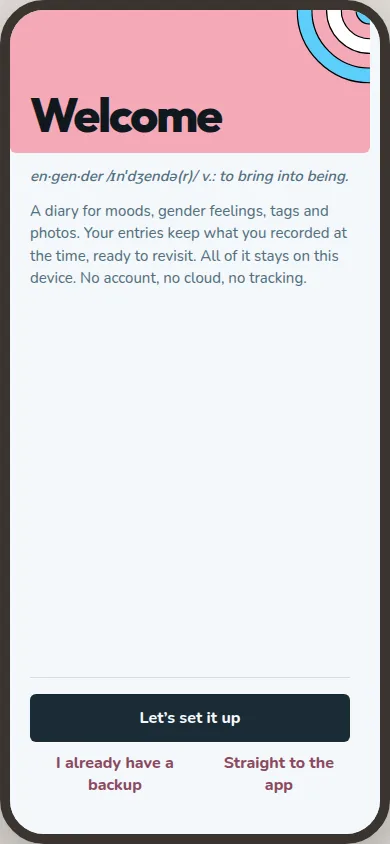
Welcome. What the app is. If you have a backup from before, restore it from here instead of starting a new journal.
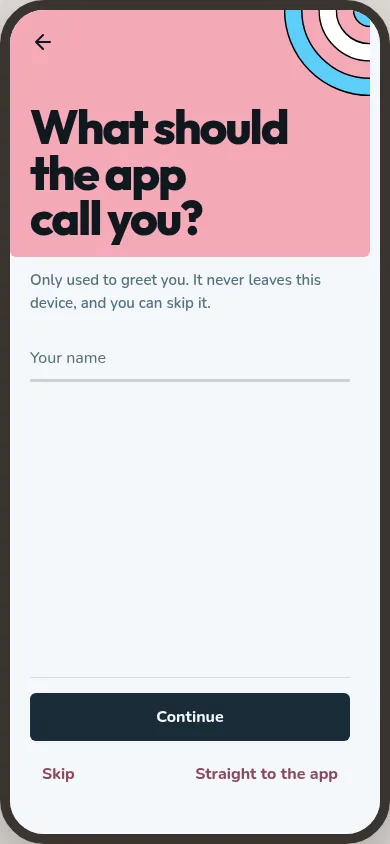
Name. What the app should call you. It is only used to greet you.
Flag. Pick a flag. Its colours run through the whole app.
Scales. Which gender scales you want to rate when you write an entry.
Areas. Which parts of the app are pinned to Today, your front page. Everything else is still there, one tap further in.
Lock. What opens your journal, such as a passphrase, a PIN or the fingerprint your phone already asks for. Each option says what it protects before you choose it. Nobody can recover a forgotten passphrase or PIN.
Permissions. What the app may ask your phone for, such as notifications, each with a reason. You do not need any of it to write an entry.
Disguise. Whether the app shows a different name and icon outside itself. It is off unless you turn it on.
Done. Setup ends and opens Today.
Every step before the last has a way straight into the app, which keeps what you have chosen so far. Most steps also have a Skip, which leaves that setting as it is.